Dashboards are not just flashy cards; but they are the charts for decisions and predictability. When users log in to Microsoft Dynamics 365 CRM, the dashboard is the first thing they see. Now, how you set it up and how it can give you clarity depend on how you create the dashboard and which one you create.
A well-designed dashboard can turn simple CRM data into actionable items and operational priorities, as well as strategic decisions. On the other hand, a poorly designed dashboard becomes cluttered.
Previously, we explored Dynamics 365 CRM upselling strategies and also learned how Dynamics 365 Omnichannel strategies help businesses deliver connected customer experiences across touchpoints.
Today, we take the discussion a step further by focusing on how teams actually see and use CRM data through Dynamics 365 CRM custom views and dashboards.
Understanding Dynamics 365 CRM custom views, dashboards, and charts is essential for every organisation.
Let’s break it down and help you with a better understanding of dashboards in unified CRM D365. But first, let’s look at the latest CRM features and trends.
What Is Dynamics 365 CRM? Next-Gen Features and Trends for 2025
Dynamics 365 CRM is evolving rapidly to meet the demands of modern businesses, offering cutting-edge capabilities that go beyond traditional customer management.
Mobile-first CRM solutions are now a key focus, enabling sales and service teams to access and update CRM data seamlessly from any device, at any time.
AI in CRM software is transforming how organisations analyse customer behaviour, automate workflows, and make smarter decisions.
Additionally, voice CRM technology is emerging as a powerful tool, enabling hands-free data entry and instant access to insights.
As CRM trends 2025 continue to emphasize intelligent automation, enhanced mobility, and connected experiences, businesses implementing Dynamics 365 CRM can stay ahead of the curve, improving productivity, engagement, and overall ROI.
These next-gen features, like AI, mobile-first access, and voice CRM, enhance how users interact with dashboards. Personal and system dashboards now deliver smarter insights and real-time data for better decision-making.
Personal Dashboards vs System Dashboards: A Practical Comparison
Dynamics 365 offers 2 basic types of dashboards, each for its unique purpose:
1. Personal Dashboards (User Dashboards)
Personal dashboards are used and created by individual users of CRM software. It doesn’t need any admin privileges.
The one who creates owns this dashboard and helps to design personal workflows. More on the Dynamics 365 dashboards tutorial: read the steps later in the article.
- Made straight from the CRM dashboard section
- Only the creator can see it unless shared explicitly.
- Completely user-customizable
- The user's default landing dashboard can be set.
- Not transferable between environments
Personal dashboards are great for sales reps, service agents, or managers who want to track their data and stay active on cases.
From the user interface, you can create a dashboard through the simple steps, such as:
1. Go to Dashboards
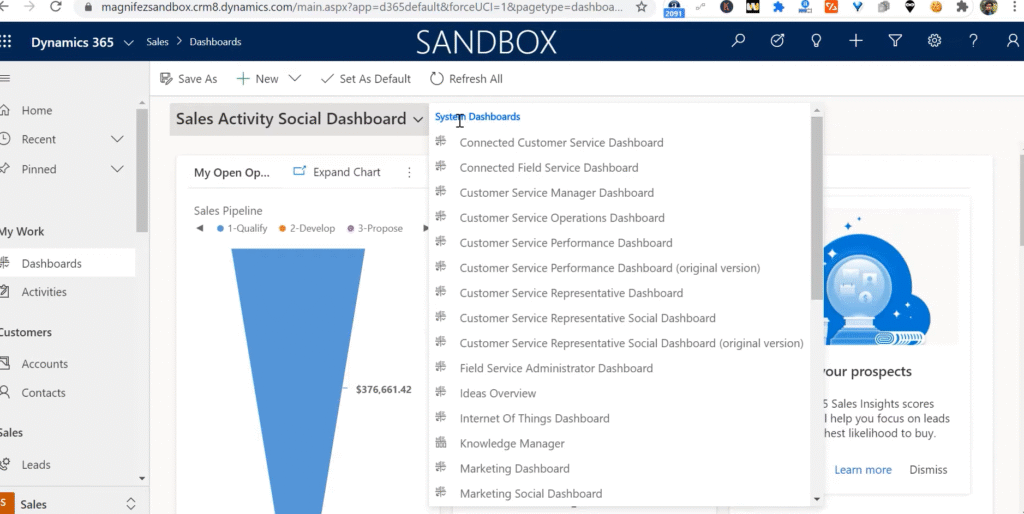
2. Select New → Dynamics 365 Dashboard
3. Choose a layout
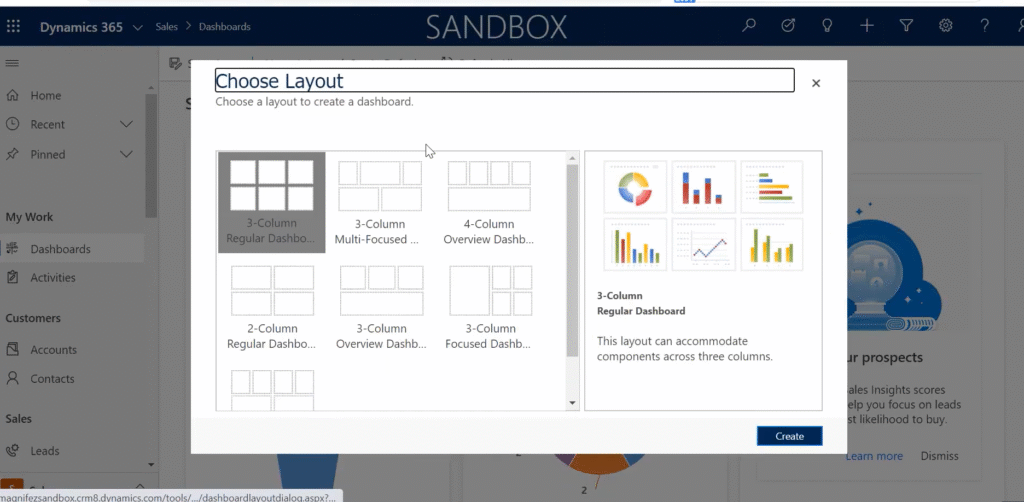
4. Add components: you can add charts, lists, iframes, or web resources
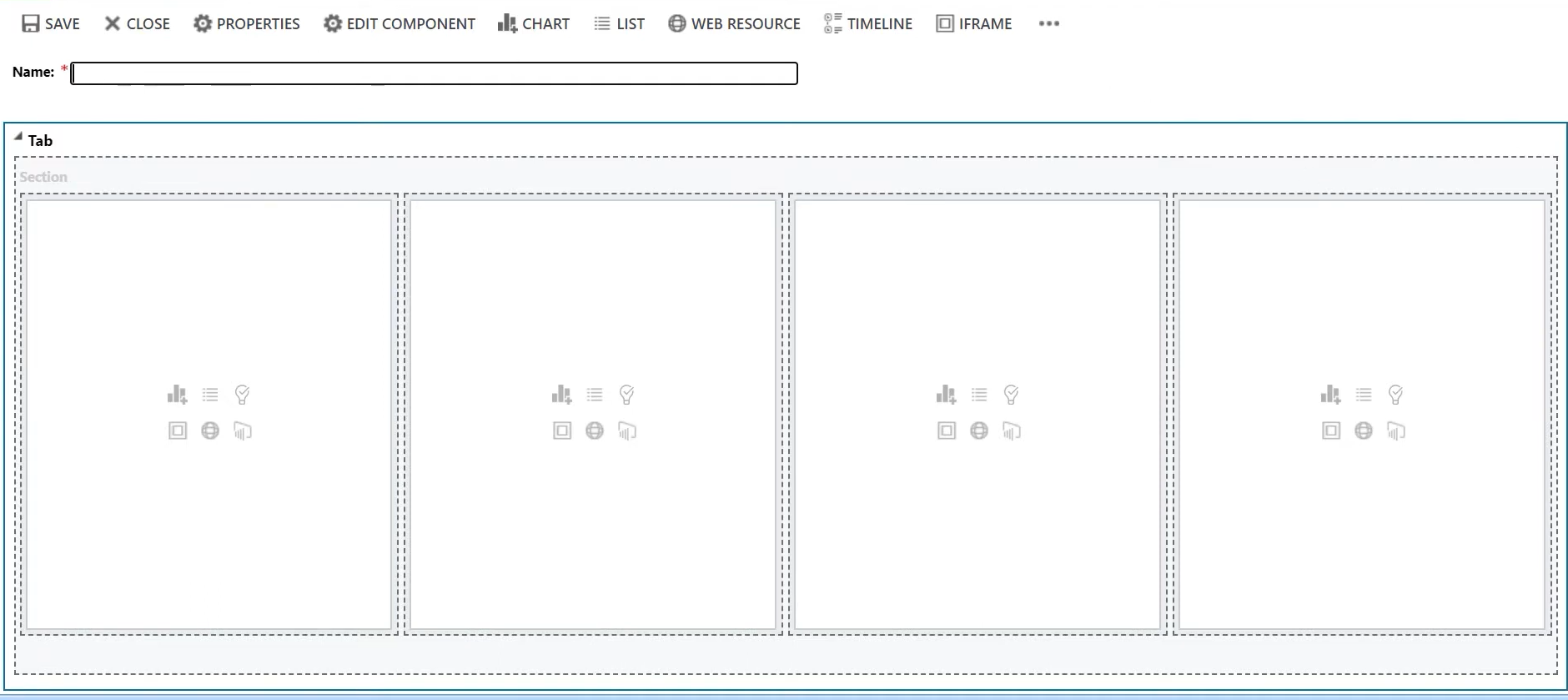
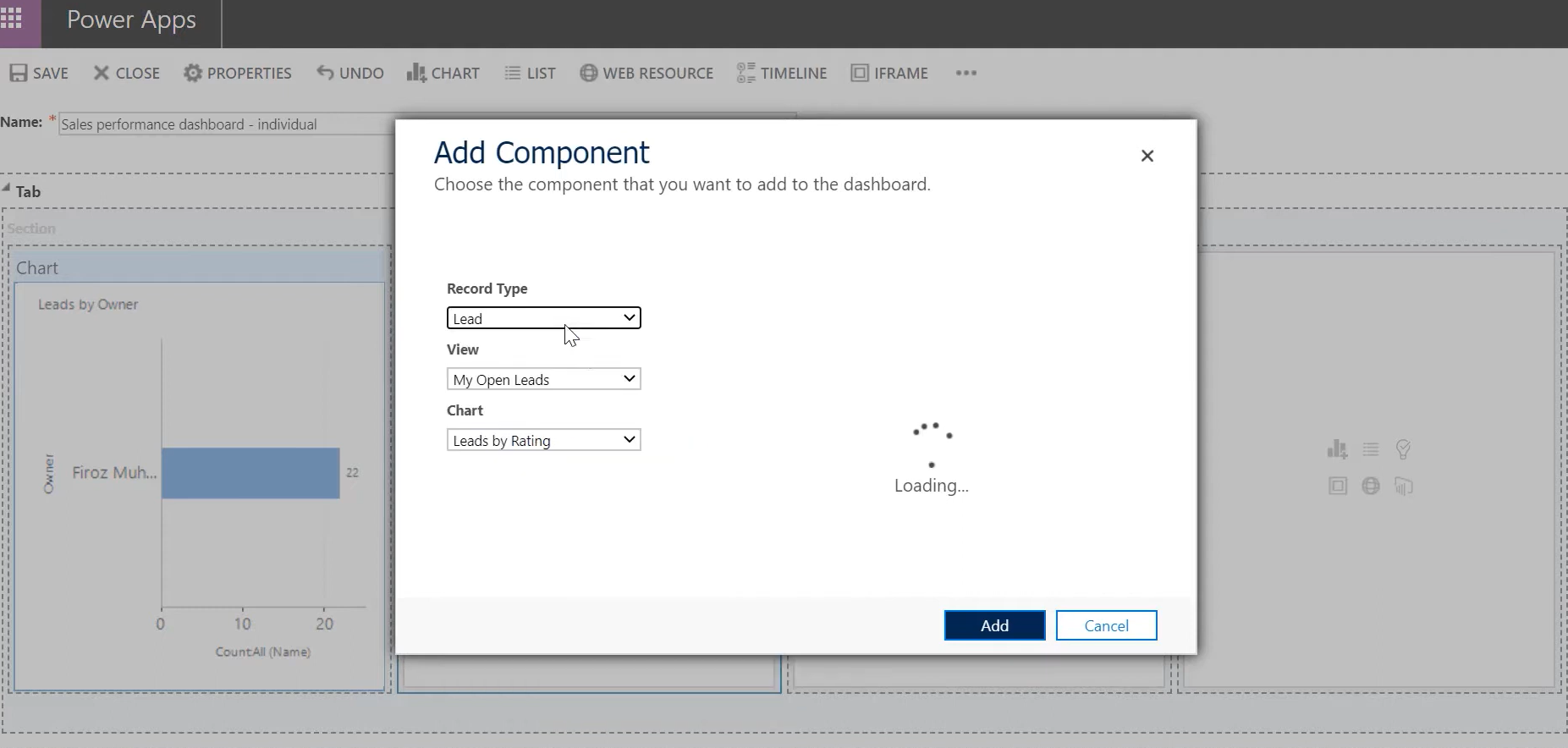
5. Save and close
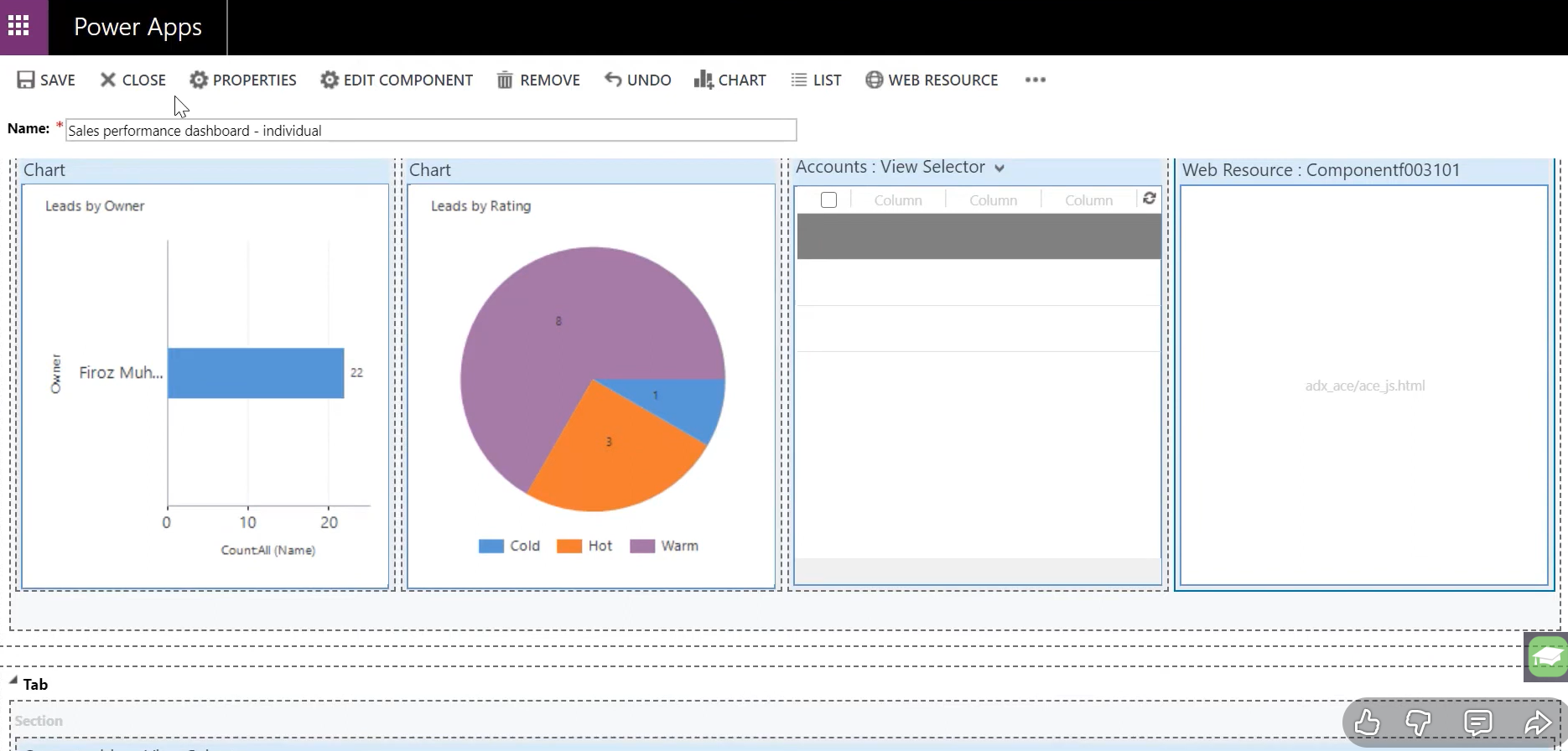
Once created, it will appear under My Dashboards, separate from other dashboards.
2. System Dashboards (Public Dashboards)
Need a team on CRM view and dashboard customisation? Create a system dashboard.
System dashboards are those created by administrators and are designed for organisation-wide use.
Main Features of System Dashboards can be better understood through how to create and customise dashboards in Dynamics 365 for better decision-making, which explains how dashboards improve visibility, reporting, and organisational decision-making.
- Developed and overseen within solutions
- Users can access it according to their security roles.
- Adaptable to different environments
- Need to be published before they can be seen
- Constructed using charts and the system CRM Custom Views
System dashboards are usually used for:
- Executive reporting
- Department-level performance tracking
- Standardised operational views
System dashboards enforce uniformity, in contrast to personal dashboards. They guarantee that teams are using the same metrics, KPIs, and success criteria.
How to Create a System Dashboard in Dynamics 365 CRM (Admin-Led Approach)
In Dynamics 365 CRM, administrators are the ones who create and manage system dashboards. These dashboards are meant to provide consistent, role-specific insights throughout the organisation.
Unlike personal dashboards, system dashboards use predefined CRM Custom Views and charts, which help maintain accuracy, security, and scalability.
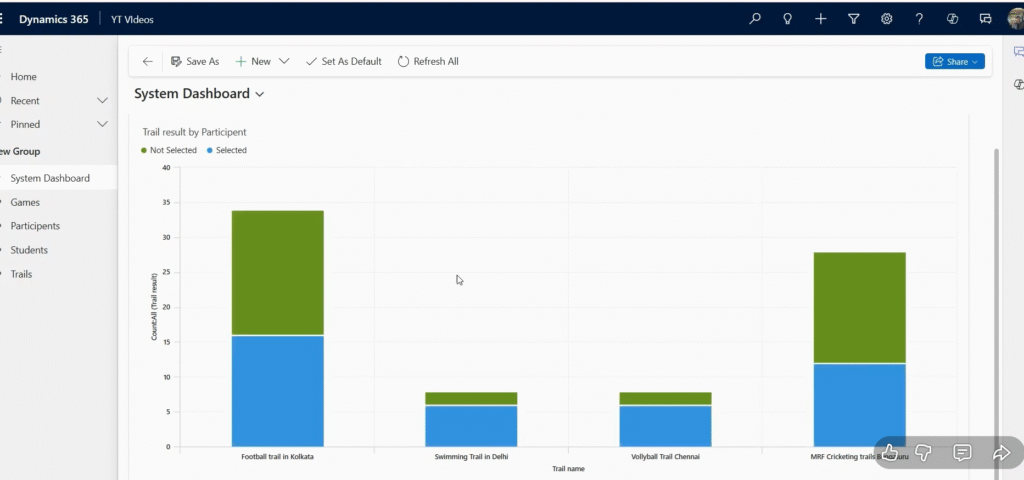
Here’s a suggested approach for admins to follow when building a system dashboard.
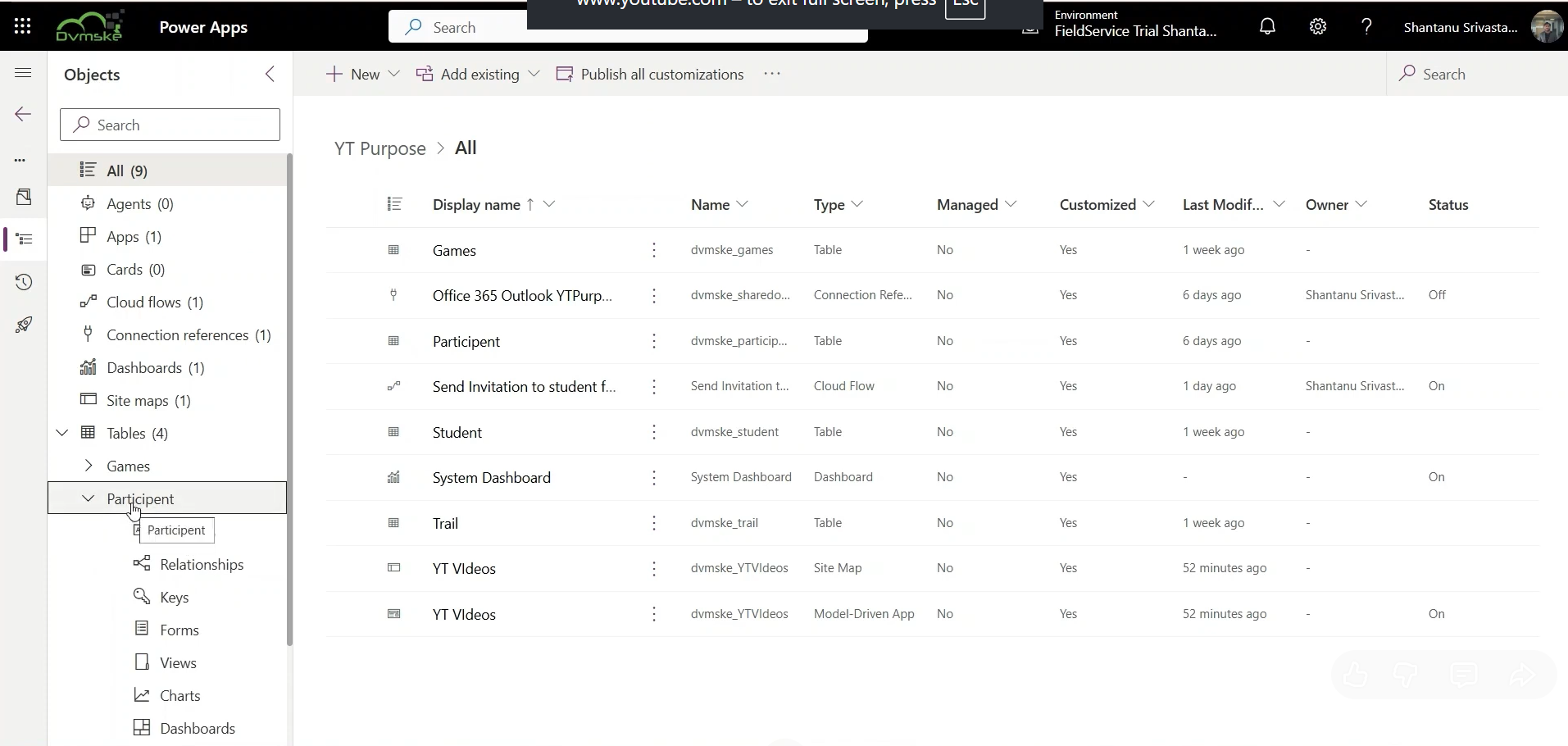
Step 1: Create Filtered Views
An effective dashboard really kicks off with well-thought-out CRM Custom Views.
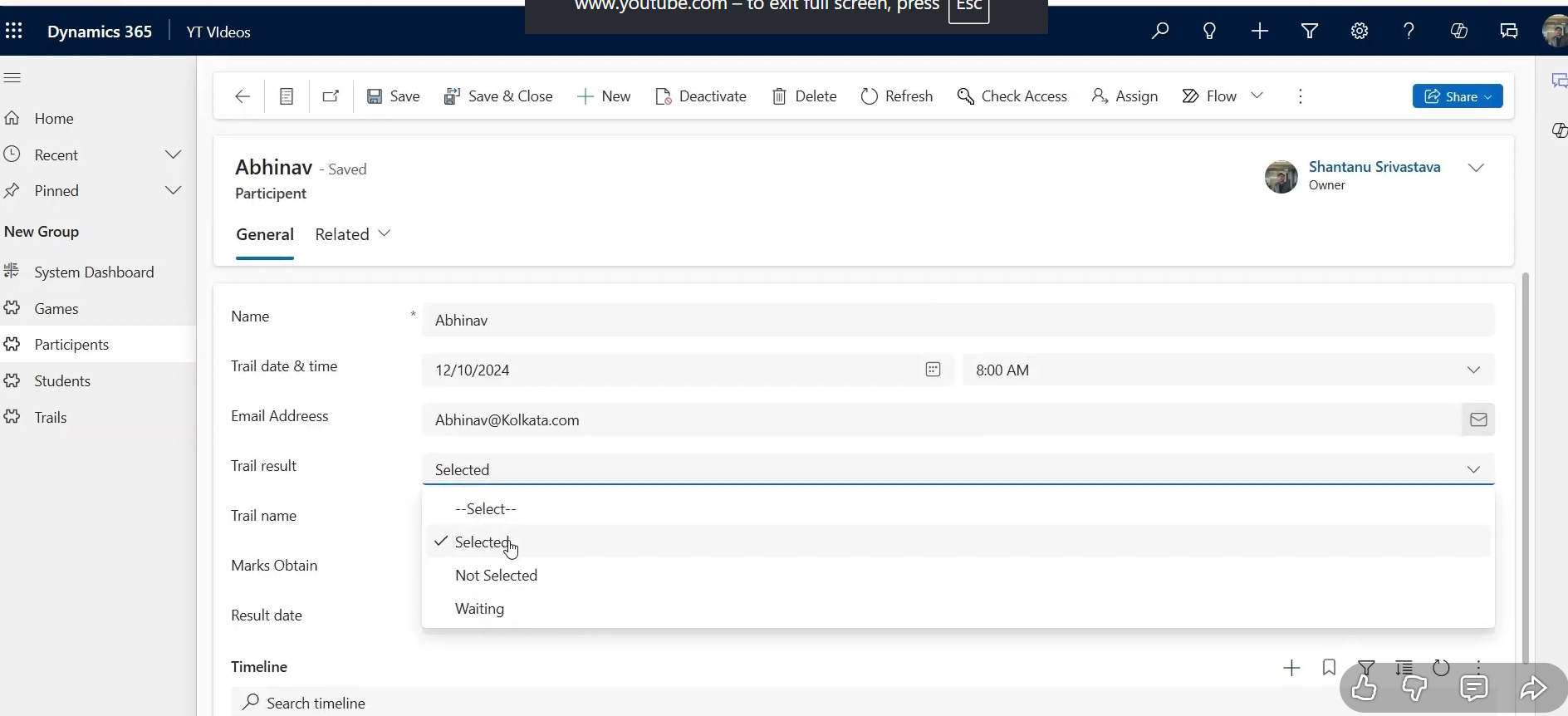
Administrators need to set up views on the relevant table (or entity) before they dive into building the dashboard. For example:
- Selected participants
- Not selected participants
- Active records awaiting action
You create CRM Custom Views using filters on specific fields, such as option sets (e.g., Selected vs Not Selected), so the dashboard shows relevant business results.
Step 2: Create Charts Based on Those Views
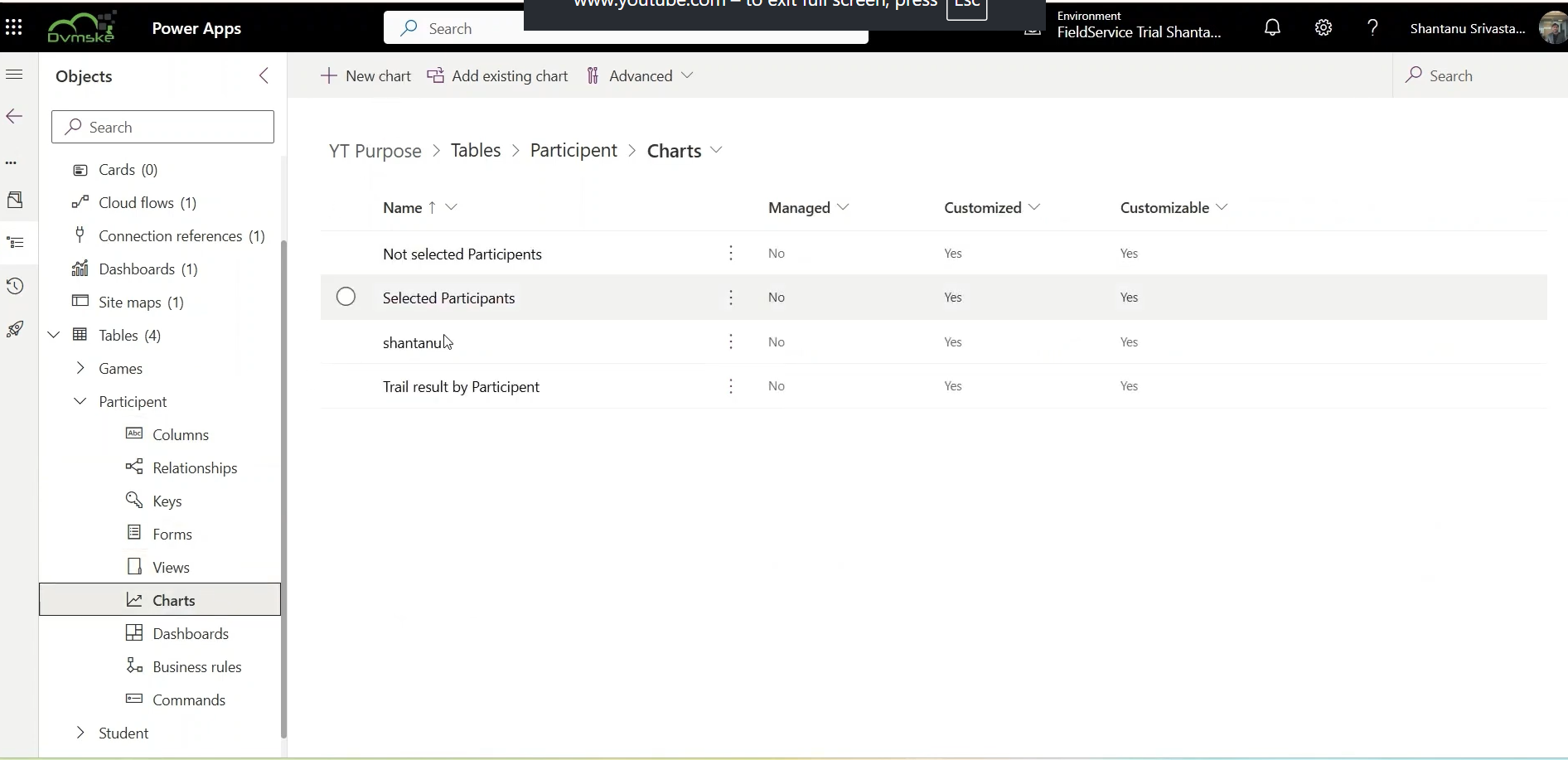
After setting up the views, you can generate charts right from that table. Administrators will set up the following:
- View (which data source to use)
- Series (what you’re measuring, like test results or status)
- Category (how to group the data)
- Chart type (like column, pie, or area charts)
With Dynamics 365 CRM reporting tools, you can visualize the same data in various ways, so it’s easy to change chart types based on what you need for reporting.
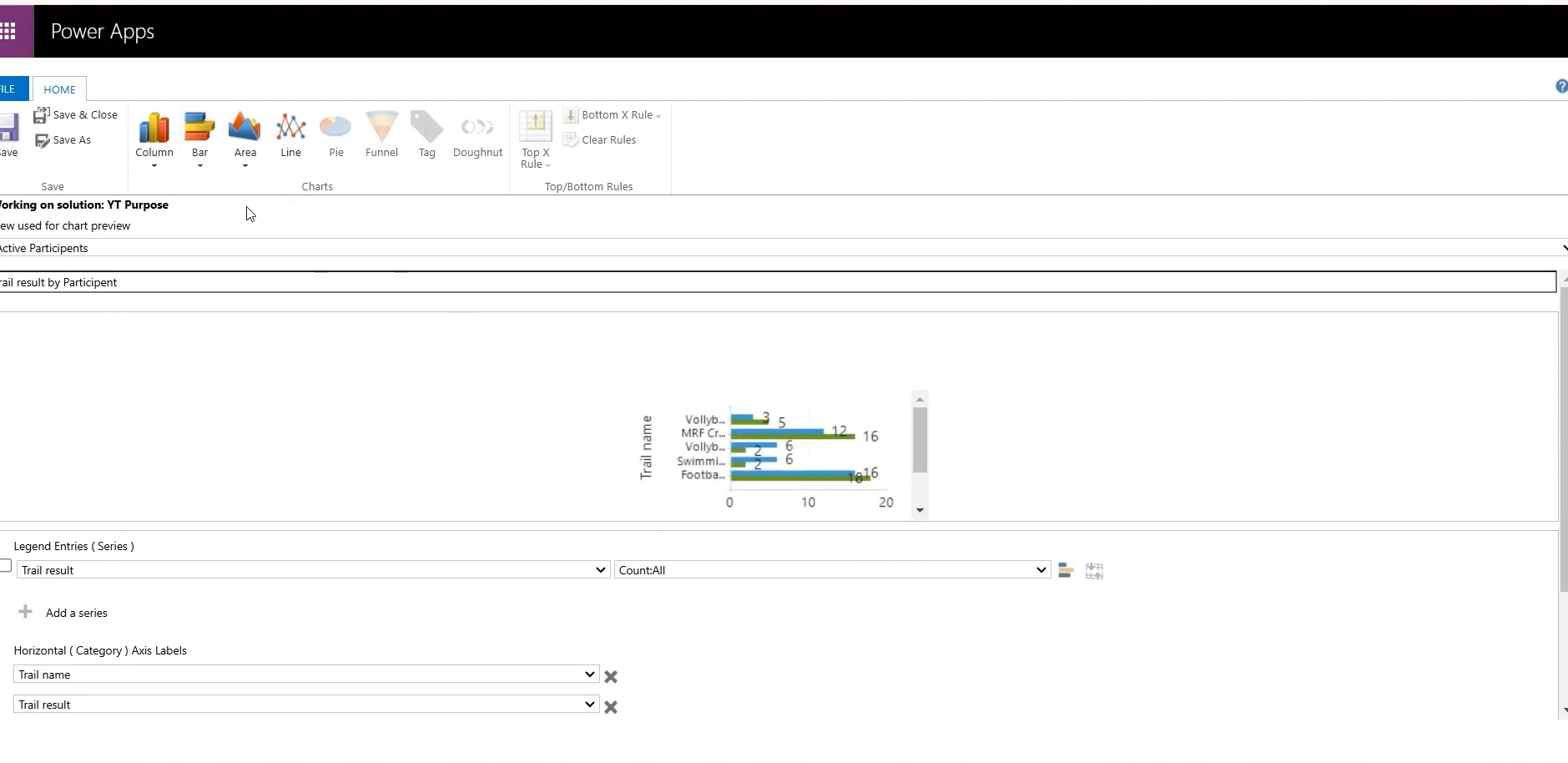
Once you save the chart, you’ll need to publish the table so that the chart shows up in the dashboards.
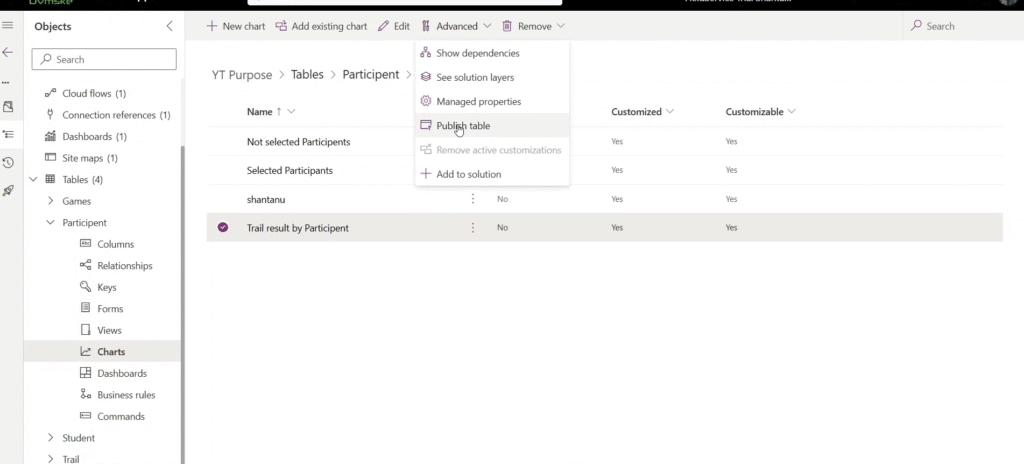
Step 3: Create the System Dashboard
Once you’ve set up your views and charts, you can start building the system dashboard as an administrator. Just follow these steps:
- Open Power Apps.
- Find and select the appropriate solution.
- Click on Dashboards → New Dashboard.
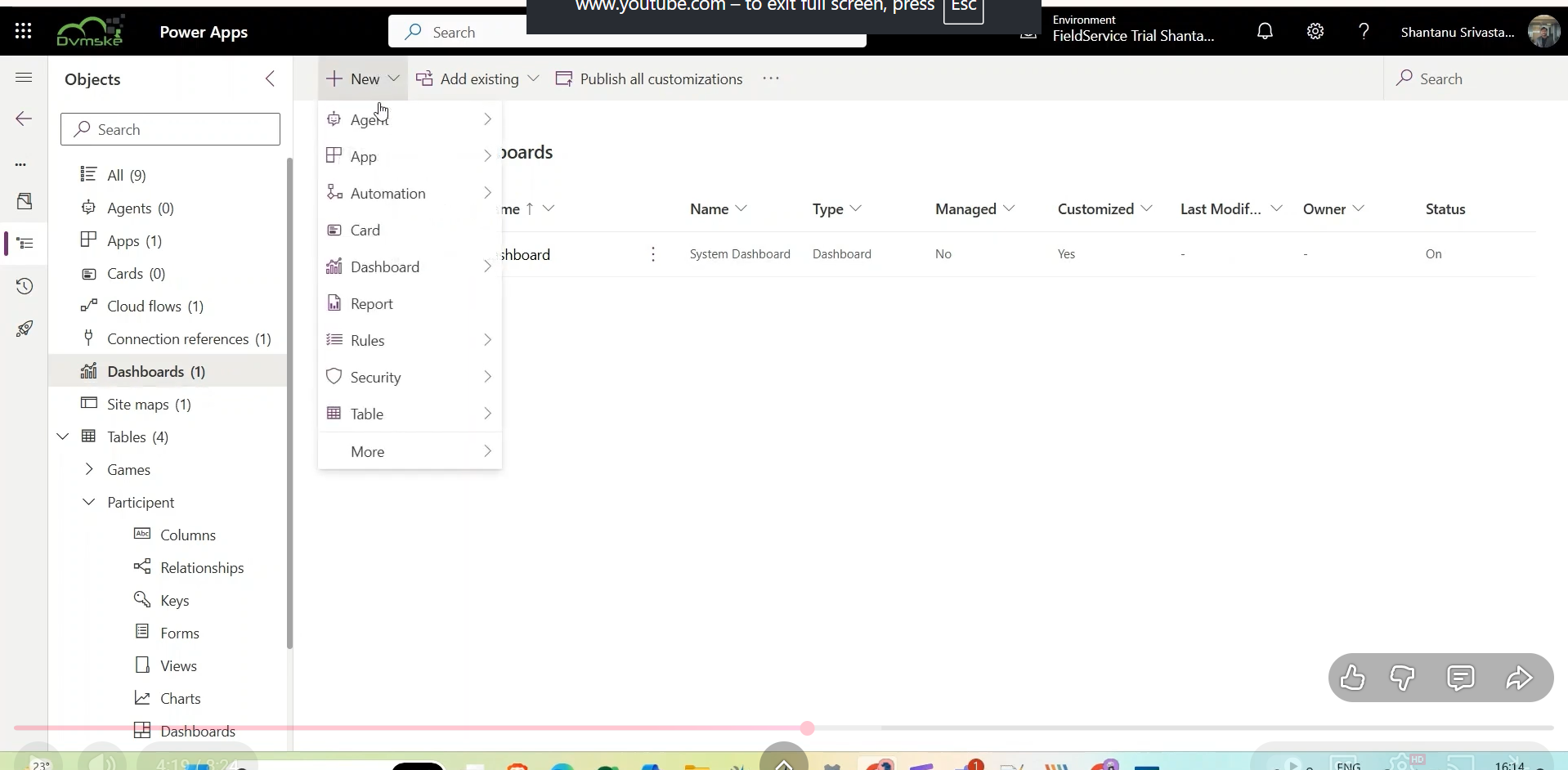
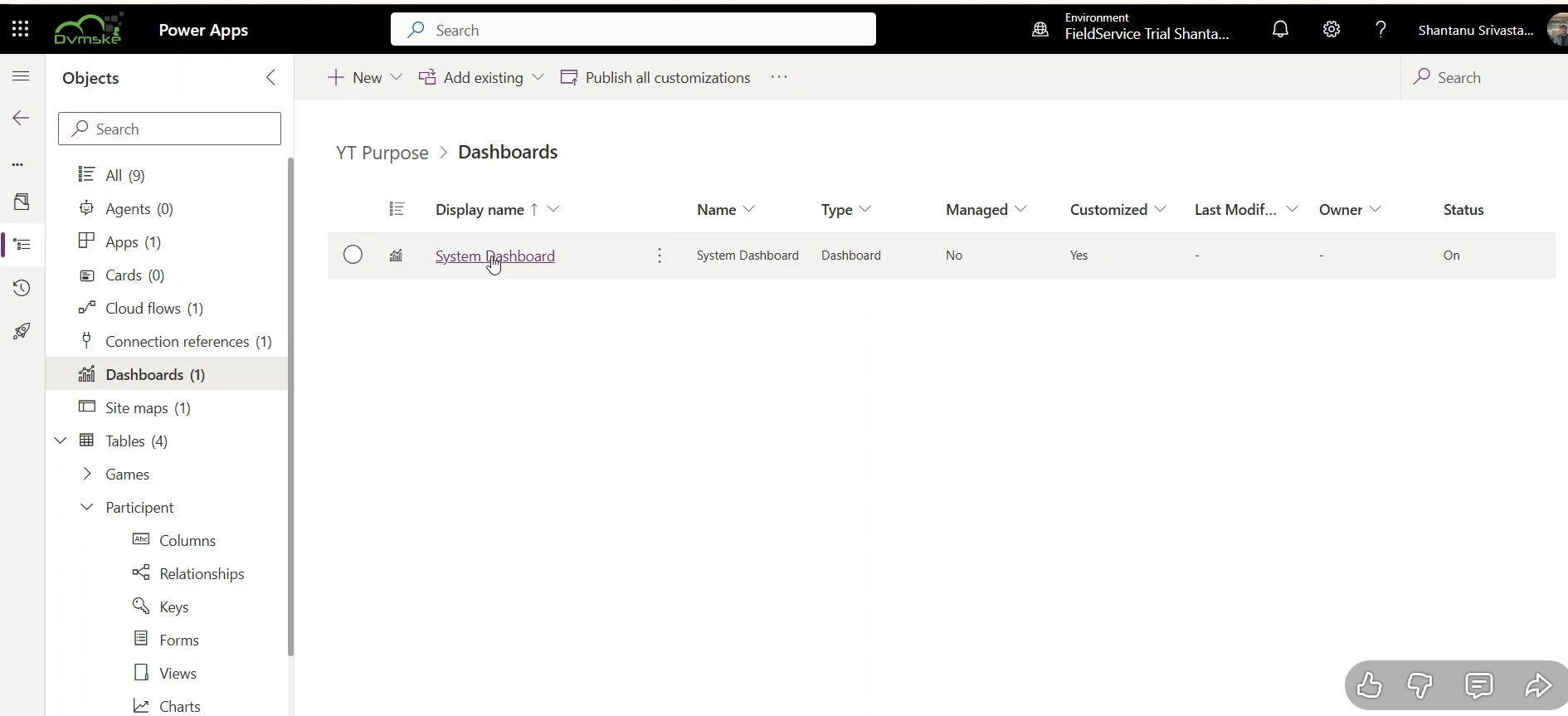
- Pick a layout that meets your reporting needs.
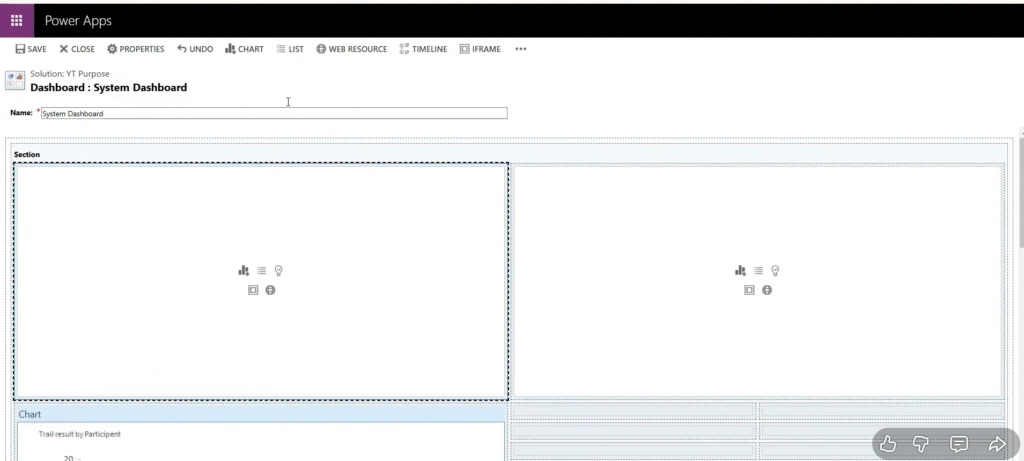
- Use the views you created earlier to add charts and lists.
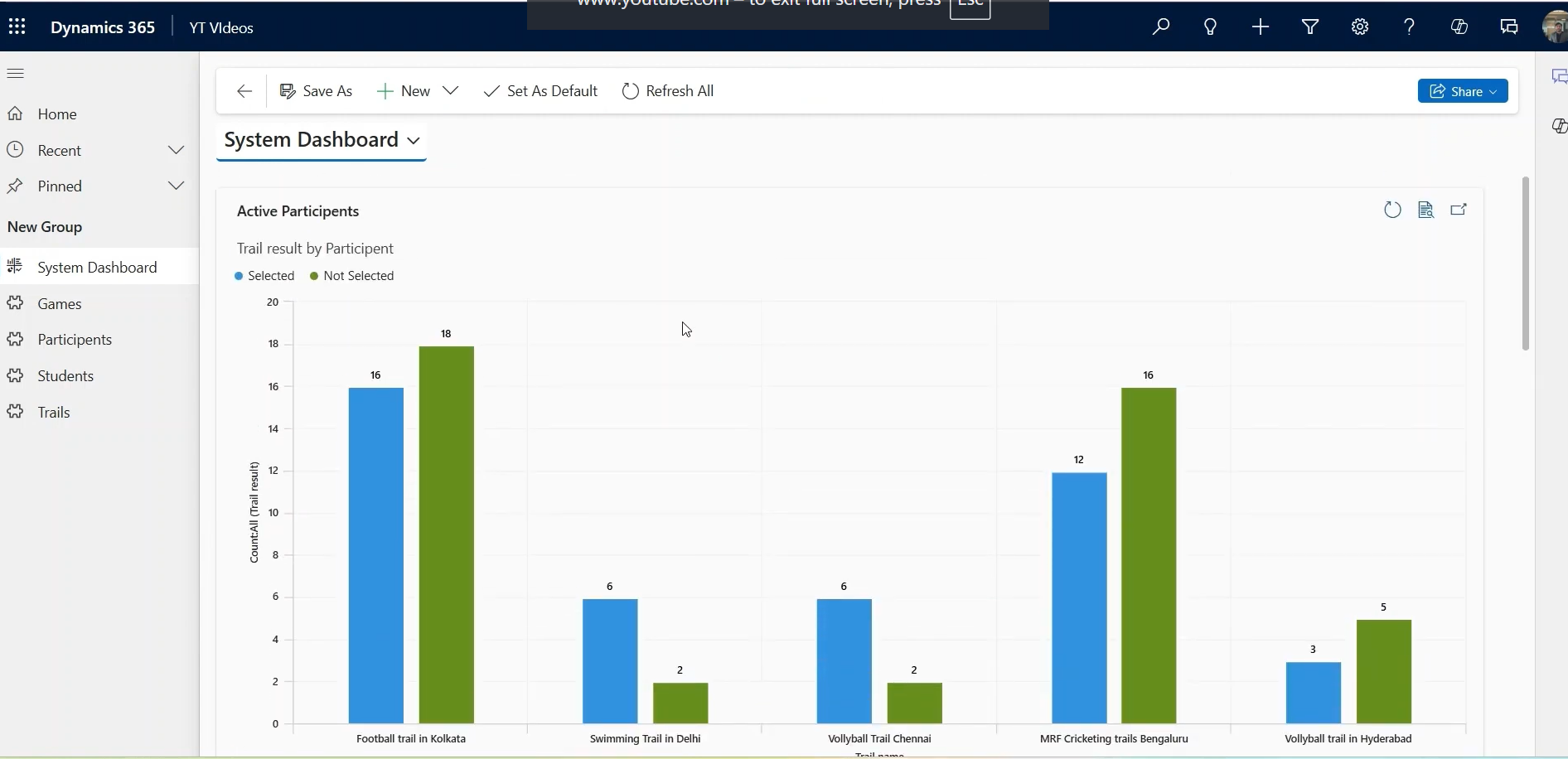
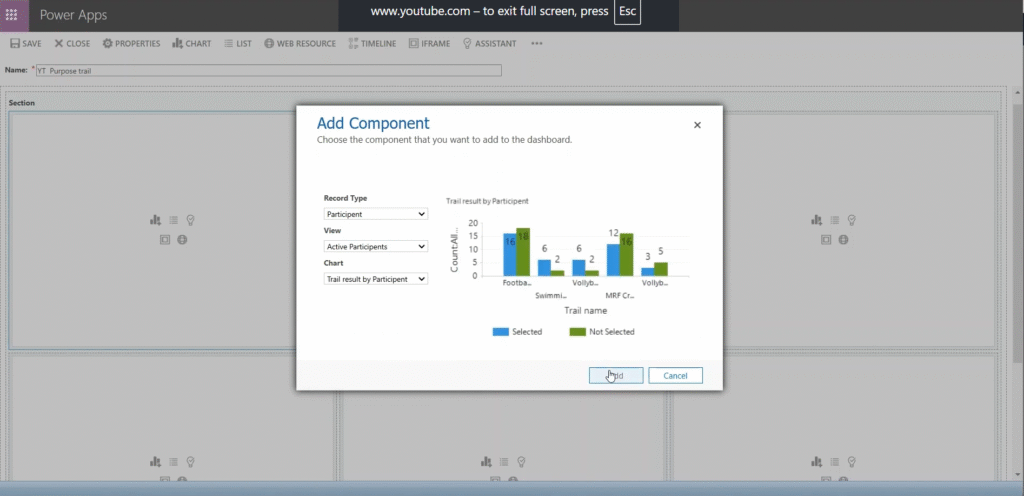
- Don't forget to save and publish your dashboard.
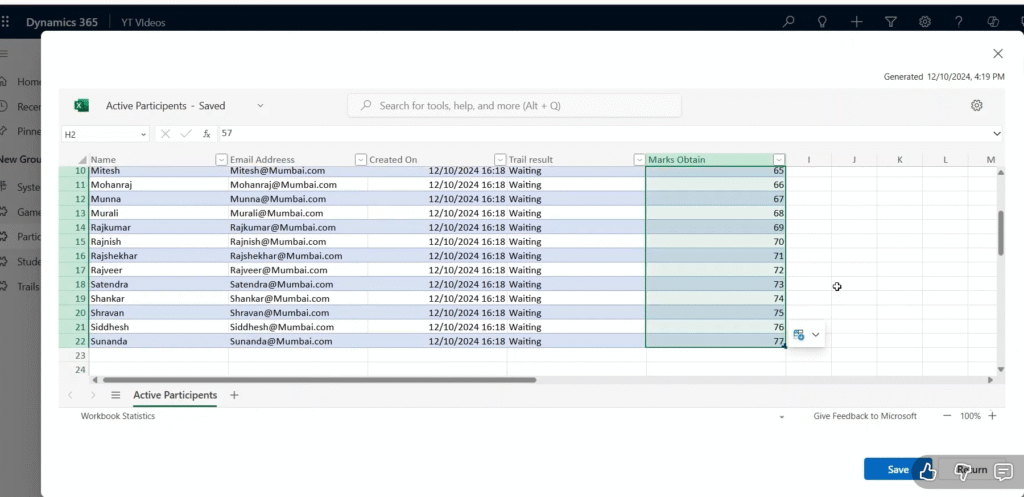
It’s super important to publish it; otherwise, end users won’t be able to see it.
Step 4: Validate with Live Data
After it’s published, the system dashboard refreshes itself automatically whenever there’s a data change.
For example:
- When record statuses get updated
- When new records are added
- When background automations or plugins modify data
This real-time update keeps the dashboards accurate without manual updates, making them great tools for both operations and management reporting.
Dynamics 365 Dashboards vs Power BI: Where Each Fits
Native dashboards are designed to give you the operational insight you need in the moment.
When Native Dashboards Work
- Everyday CRM tasks
- Interacting with data in real-time
- Boosting user productivity
- Minimal setup required
They help you figure out things like: “What do I need to focus on today?”
Conclusion
Dynamics 365 CRM custom views and dashboards play a critical role in turning raw data into daily direction for teams. When implemented correctly, they improve visibility, accountability, and decision-making across departments.
As part of a well-planned Dynamics 365 CRM implementation, dashboards directly contribute to stronger adoption and better CRM implementation ROI by ensuring users focus on the right priorities from day one.
While the cost of CRM implementation is always a consideration, investing in structured dashboards and views delivers long-term value through efficiency and clarity.
At DHRP, we help organisations choose the right CRM and design CRM dashboards that align with business goals, ensuring measurable outcomes and scalable growth.
The screenshots in this blog are taken from this video.
Frequently Asked Questions
Navigate to the desired entity, select “Create View,” apply filters and columns, name the view, and save it. Custom views help users focus on relevant CRM data efficiently.
Keep dashboards simple, use relevant charts, align with user roles, leverage real-time data, and maintain consistency. Ensure dashboards provide actionable insights without clutter for better decision-making.
Use personal dashboards for individual workflows, system dashboards for organisational needs. Add charts, lists, or web resources, adjust layouts, and publish updates to reflect accurate, actionable CRM data.